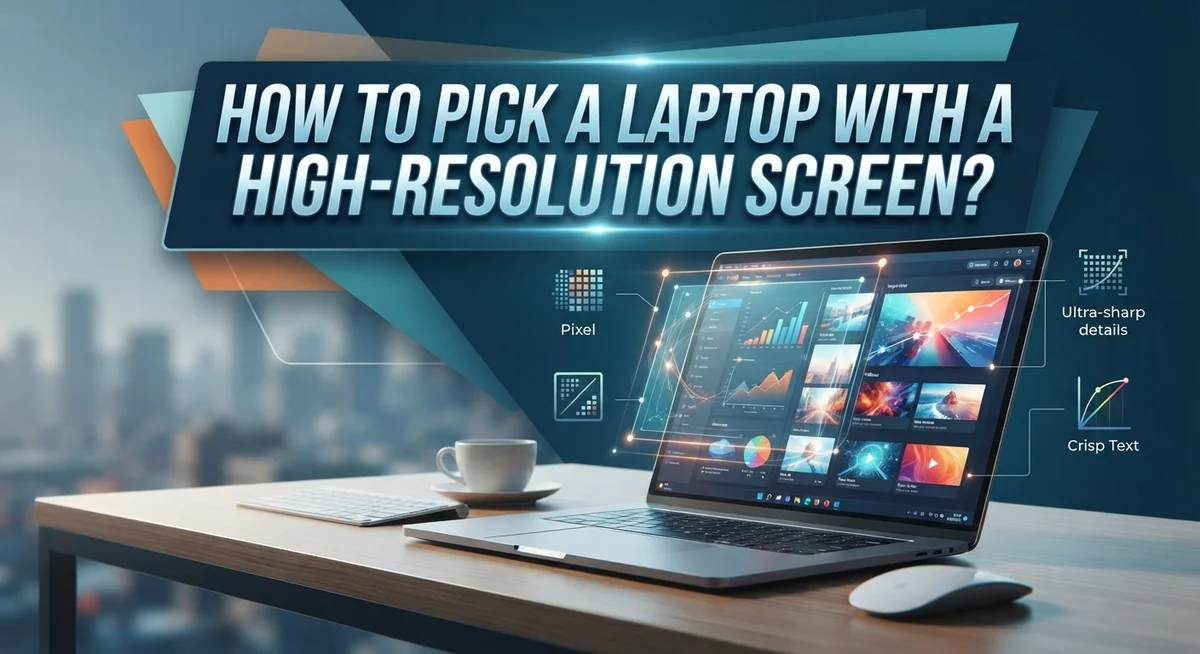
How to Pick a Laptop With a High-Resolution Screen
A sharp, clear screen changes everything. It makes your photos pop. It makes text easy to read. It makes videos feel real.
But picking the right screen resolution is not always simple. Many buyers just look at the price tag. Others forget to check how resolution matches screen size.
This guide breaks down everything you need to know. We will explain what resolution actually means. You will learn about FHD, QHD, and 4K Ultra HD options.
We will also show you how screen size affects your choice. A high resolution on a small screen may not matter much. The same resolution on a bigger screen can look stunning.
You will discover the sweet spot between resolution and screen size. We will also cover why RAM and graphics matter just as much as pixels.
By the end, you will know exactly how to choose a laptop screen that fits your needs. No guesswork. No wasted money. Just a clear picture of what makes a great display.
In a Nutshell
Here is a quick recap of what matters most when picking a laptop screen.
-
Resolution decides clarity. More pixels mean sharper text and images. FHD, QHD, and 4K Ultra HD are the main options you will see.
-
Screen size and resolution must match. A high resolution on a small screen adds little value. The same resolution on a bigger screen looks noticeably better.
-
Find the sweet spot. This means choosing a resolution that fits your screen size perfectly. It avoids wasting power on pixels you cannot even notice.
-
RAM and graphics matter too. A sharp screen needs enough memory and a solid graphics card. Otherwise, performance may suffer even with a great display.
-
Avoid common mistakes. Do not focus only on price. Do not ignore portability if you travel often. Do not pick resolution without checking screen size first.
-
Balance is everything. The best laptop screen combines the right resolution, the right size, and enough hardware support. This gives you a smooth and clear viewing experience every time.
Understanding Screen Resolution Basics
Resolution describes how many pixels fit on your screen. Pixels are tiny dots of light that create the image you see. Manufacturers list resolution as two numbers: horizontal pixels × vertical pixels.
A 1920×1080 screen has 1920 pixels across and 1080 pixels down. This setup is called Full HD or FHD. More pixels packed into the same space means sharper text, crisper images, and finer details.
Common resolution options include FHD (1920×1080), QHD (2560×1440), and 4K Ultra HD (3840×2160). Each step up adds more pixels and increases clarity. Your eyes can see the difference, especially when reading small text or viewing detailed graphics.
Here’s the important part: resolution alone doesn’t tell the whole story. A 1600×900 resolution on a 13 inch screen looks acceptable. That same resolution stretched across a 17 inch screen looks blurry and pixelated. The pixels get larger and more visible.
Screen size and resolution must work together. Smaller screens (13 to 14 inches) suit FHD just fine. Medium screens (15 to 16 inches) benefit from QHD. Larger screens (17 inches and up) can handle 4K without making text too small to read comfortably.
Your work also matters. Designers and video editors need higher resolutions to see fine details. Office workers and casual users find FHD perfectly adequate. Gamers might choose QHD as a middle ground between performance and visual quality.
One more consideration: higher resolution demands more from your laptop’s graphics card and RAM. A powerful graphics processor and sufficient memory help your laptop display high resolution smoothly without lag or stuttering. Pairing resolution with weak hardware creates frustration, not improvement.
Comparing FHD, QHD, and 4K Ultra HD Displays
Full HD (FHD) shows 1920 pixels wide and 1080 pixels tall. This resolution works well for laptops with 13 to 15 inch screens. Text stays sharp and videos look clear at this level.
Quad HD (QHD) displays 2560 pixels wide and 1440 pixels tall. You get noticeably more screen space and sharper details compared to FHD. QHD suits 15 inch screens and larger displays best. Many professionals choose QHD for extra workspace.
4K Ultra HD reaches 3840 pixels wide and 2160 pixels tall. This resolution delivers the sharpest images available. However, 4K works best on screens 15 inches or bigger. On smaller screens, the improvement becomes hard to see.
Here’s what matters most: match your resolution to your screen size. A 13 inch FHD screen looks crisp. That same 13 inch screen in QHD shows minimal difference because pixels sit so close together. Your eyes cannot detect the extra detail at normal viewing distances.
Screen size and resolution create a team. Larger screens benefit from higher resolutions. Smaller screens look equally sharp at lower resolutions.
Your laptop’s power matters too. Higher resolution demands more from your graphics card and RAM. FHD requires less processing power. QHD and 4K need stronger components to run smoothly. If your laptop lacks sufficient RAM or graphics capability, high resolution can slow things down.
Consider your actual work. Writers and spreadsheet users find FHD perfectly adequate. Designers, video editors, and photo professionals gain real benefits from QHD or 4K. General browsing and streaming work fine at any resolution you choose.
The practical sweet spot for most people falls between FHD and QHD on 15 inch screens. You get improved clarity without overwhelming your laptop’s resources or your budget.
Finding the Right Resolution-to-Screen-Size Ratio
When you pick a laptop screen, you need to think about how resolution and screen size work together. A small screen with ultra high resolution can actually look worse than you expect. Your eyes struggle to see the benefit when pixels get too tiny.
Here’s what happens: a 13 inch screen with 4K resolution creates pixels so small that text becomes hard to read. You end up squinting or adjusting your system settings, which defeats the purpose. The real magic happens when resolution matches your screen size.
For a 13 to 14 inch laptop, FHD (1920×1080) gives you a sharp image without straining your eyes. For 15 to 16 inch screens, QHD (2560×1440) hits the sweet spot. You get noticeably better clarity without making everything microscopic. For 17 inch screens and larger, 4K becomes more practical because pixels stay at a comfortable viewing size.
Think about pixel density, which measures how many pixels fit in each inch. A 1600×900 resolution on a 16 inch screen looks blurry because the pixels spread too thin. The same resolution on a 13 inch screen looks sharper because pixels pack closer together. This is why mismatching resolution to screen size wastes your money.
Your laptop’s power matters just as much as the numbers. A high resolution screen demands more from your graphics card and RAM. If your laptop can’t keep up, you’ll see lag when scrolling or working with images. You want enough power to actually display that beautiful resolution smoothly.
Start by measuring your typical viewing distance. If you sit close to your screen, a smaller resolution works fine. If you sit farther back, you can go higher without eye strain. Match resolution to screen size, then check your laptop’s specs to ensure it can handle it. This combination gives you the best real world experience.
How RAM and Graphics Affect Display Performance
Your laptop’s RAM and graphics card work together to make high resolution screens actually useful. Think of them as the engine that powers your display.
RAM handles the heavy lifting. When you open multiple programs or browser tabs, your laptop stores information in RAM. High resolution screens create more pixels to manage, so they need extra memory. With 8GB of RAM, you might notice slowdowns when running demanding programs on a 4K screen. Bump that up to 16GB, and your system handles the workload smoothly.
Your graphics card does the actual drawing. It processes every pixel on your screen and decides what color each one should be. A 4K display has four times more pixels than a Full HD screen, so your graphics card works much harder. Integrated graphics (built into your processor) handle FHD and QHD screens just fine. But if you want 4K without stuttering, you need a dedicated graphics card.
Here’s the practical part: resolution and hardware must match. Pair a 4K screen with weak graphics and RAM, and you’ll experience lag, slow performance, and frustration. The system becomes unbalanced. Your beautiful high resolution screen actually becomes slower than a lower resolution setup with better components.
For everyday tasks like email and web browsing, FHD or QHD screens work great with standard RAM and integrated graphics. But if you do video editing, 3D design, or gaming, you need stronger hardware to support higher resolutions.
The sweet spot depends on your actual work. Ask yourself what you do daily. Then match your resolution choice to hardware that can support it. Skipping on RAM or graphics to save money means your expensive high resolution screen won’t perform well. Balance matters more than individual specs.
Step-by-Step Guide to Evaluating a Laptop Screen
Start by checking the screen size of your laptop. Measure the diagonal distance from corner to corner. Most laptops range from 13 inches to 17 inches.
Next, understand what resolution means. Resolution shows how many pixels appear on your screen. More pixels mean sharper images and more space for your work.
Look at pixel density first. This tells you how many pixels fit in each inch of screen. A 13 inch screen with too many pixels creates text so small you cannot read it comfortably. A 15 inch screen handles more pixels without this problem.
Check what tasks you actually do. If you write emails and browse websites, you need less resolution than someone who edits photos or videos. Basic work needs FHD resolution. Creative work often benefits from QHD or higher.
Consider your viewing distance. Sit at your normal working position and measure how far your eyes sit from the screen. Most people sit 20 to 30 inches away. Farther distances let you use higher resolutions comfortably.
Test the screen if possible. Open a web page with text and images. Move closer and farther away. See if text stays sharp and readable at your preferred distance.
Think about your laptop’s age and specs. Older laptops with basic graphics cards struggle with very high resolutions. Newer models handle 4K screens better.
Balance all these factors together. A 15 inch laptop with QHD resolution often works well for most people. A 13 inch laptop with FHD usually feels more comfortable. A 17 inch laptop can handle 4K without eye strain.
Write down your screen size, your typical tasks, and your viewing distance. Use this information to narrow your choices. Visit stores and look at different resolution options on similar sized screens. Your eyes will tell you what works best for your situation.
Common Mistakes When Choosing Screen Resolution
Many people make predictable mistakes when picking a laptop screen resolution. Understanding these errors helps you avoid wasting money on the wrong choice.
Focusing only on price is the biggest trap. A cheap laptop with high resolution sounds good, but it often comes with weak graphics and insufficient RAM. Your screen looks blurry or sluggish when the hardware cannot support those pixels. You end up frustrated with a device that underperforms.
Ignoring portability needs causes real problems. A 17 inch screen with 4K resolution is gorgeous on a desk. Carrying it daily becomes exhausting. The extra weight and size drain your battery faster too. Consider where you actually use your laptop before chasing maximum resolution.
Mismatching resolution to screen size is surprisingly common. Some people buy a 13 inch laptop with 1600 pixel horizontal resolution thinking they get better image quality. The improvement is barely noticeable because pixels become so tiny. Your eyes strain reading text. You waste processing power on pixels you cannot even see clearly.
Skipping the memory and graphics check leaves you disappointed. A stunning 4K screen means nothing if your graphics card cannot handle it smoothly. Videos stutter. Games lag. Everyday scrolling feels choppy. Resolution numbers alone do not tell the whole story.
Overlooking your actual workflow leads to poor decisions. If you mainly write emails and browse websites, you do not need 4K resolution. You waste battery life and money on features you never use. Match your resolution choice to real tasks like photo editing, coding, or streaming.
Not testing before buying is a costly mistake. Visit a store and look at different resolution options. Sit at your normal viewing distance. Open programs you actually use. See how text looks. Notice how your eyes feel after 30 minutes of viewing. This real world test beats any specification sheet.
Troubleshooting Resolution and Display Issues
Display problems happen more often than you’d think. When you get a high-resolution laptop, issues can pop up during setup or regular use. Learning to fix these problems saves you time and frustration.
Blurry text is the most common complaint. This usually means your scaling settings don’t match your resolution. Windows and Mac both have scaling options that enlarge text and icons. Check your display settings and adjust the percentage until text looks sharp. You might need to try 100%, 125%, or 150% depending on your screen size and resolution.
Colors looking wrong? Your display might need calibration. Most laptops have built-in color settings in the control panel. You can also adjust brightness, contrast, and color temperature manually. If colors still seem off, check if your laptop is in battery saver mode. This mode sometimes reduces color accuracy to save power.
Flickering or flashing screens often come from driver issues. Your graphics driver controls how your screen displays images. Visit your graphics manufacturer’s website and download the latest driver. Restart your laptop after installing it. Flickering can also happen from loose cables, though this is less common with modern laptops.
Screen tearing appears as horizontal lines during fast movement. This happens when your refresh rate doesn’t match your graphics output. You can adjust refresh rate in your display settings, though options depend on your hardware.
Heat problems affect display quality too. High-resolution screens work your graphics card harder, creating more heat. Make sure your laptop’s vents stay clear and use it on hard, flat surfaces. Overheating can cause performance drops and screen dimming.
If problems persist after trying these steps, check your warranty. Hardware defects sometimes cause display issues that software fixes can’t solve. Document what you’ve tried before contacting support. This information helps technicians help you faster.
Final Thoughts
Picking the right laptop screen comes down to a few simple choices. You need to match resolution with screen size. You also need enough RAM and graphics power to support that resolution.
Think about your daily tasks first. Someone who edits videos needs a different screen than someone who checks email. Your work determines how much resolution actually matters.
Screen size and resolution work together. A high resolution on a small screen wastes money. That same resolution on a bigger screen makes a real difference you can see.
Remember the common mistakes we covered. Skipping the memory check causes frustration later. Ignoring your actual workflow leads to buyer’s regret.
Testing before you buy remains your best strategy. Numbers on a spec sheet only tell part of the story. Your eyes tell you the rest.
Take time to sit with a laptop before purchasing it. Look at text clarity. Check how images appear at your normal viewing distance.
Balance matters more than maximum specs. A laptop with the highest resolution isn’t always the smartest choice. The right combination of screen size, resolution, RAM, and graphics gives you the best experience.
Your perfect laptop screen depends on your unique needs. Someone editing photos all day needs different specs than someone writing documents. There’s no single answer that works for everyone.
Use the steps from this guide as your roadmap. Check your screen size. Understand resolution options. Match them to your viewing distance and daily tasks.
Small adjustments make big differences. Getting your scaling settings right prevents blurry text. Choosing the correct resolution for your screen size prevents wasted money.
Trust the process you’ve learned here. Write down your requirements. Compare them against what different laptops offer.
The best screen for you balances resolution, size, and your actual computing needs. Keep this balance in mind, and you’ll make a confident choice that serves you well for years.
Frequently Asked Questions
What resolution should I choose for a 13 inch laptop?
A 13 inch screen works best with Full HD (1920×1080) resolution. This size gives you sharp text and clear images without straining your eyes. Going higher to QHD (2560×1440) on such a small screen makes everything tiny. You’ll need to zoom in constantly, which defeats the purpose of higher resolution.
How does screen size affect resolution choices?
Screen size and resolution go hand in hand. A larger screen can show more pixels without making text unreadable. A 15 inch laptop handles QHD well because the pixels spread across more space. A 17 inch screen pairs nicely with 4K resolution. On smaller screens, cramming too many pixels makes everything difficult to see.
Will a high resolution laptop drain my battery faster?
Yes, it does. Higher resolution means your graphics card works harder to display more pixels. This uses more power and reduces battery life. If you travel often, consider this trade off carefully. A standard FHD screen lasts longer on battery than a QHD or 4K option.
Do I need extra RAM for a high resolution screen?
Not directly, but it helps. High resolution demands more from your graphics card, not your RAM. However, combining high resolution with demanding tasks like video editing or 3D work requires both strong graphics and plenty of RAM. Check that your laptop has at least 8GB of RAM if you want smooth performance with a high resolution screen.
What’s the difference between QHD and 4K resolution?
QHD (2560×1440) offers sharp visuals on 14 to 15 inch screens. 4K (3840×2160) provides even more detail but works best on 15 inch screens or larger. On smaller screens, 4K makes text too small to read comfortably. For most people, QHD gives the best balance between clarity and usability.

DK is a tech enthusiast and product reviewer dedicated to helping readers explore the ever-evolving world of technology. With a passion for testing gadgets, apps, and appliances, DK delivers honest, in-depth reviews and practical buying guides to make your tech decisions easier.